Starting July 6th for sandboxes and July 15th for production environments, Salesforce is enforcing phishing-resistant multi-factor authentication (MFA) for privileged users, and this time there's no setting to turn it off.
At CauseMic, we manage Salesforce environments for nonprofits of every size, and this is one of those changes that looks small on paper but can cause real disruption if it catches your team by surprise.
Thankfully, the update is pretty straightforward. Most orgs can be ready in an afternoon.
The part that trips people up is knowing exactly who on their team needs to act, and the steps they need to take before enforcement reaches their nonprofit. So today, we’re getting into the specifics.
What’s Happening & Why
Salesforce is locking the door on an increasingly common style of phishing attack. Someone calls a staff member pretending to be IT and directs them to a fake Salesforce login page.
That page captures their password and one-time code in real time, then replays both into the real org’s login page before the code expires. This gives the attacker unrestricted access to the nonprofit’s Salesforce instance and all of the data in it.
To avoid this security nightmare, Salesforce will now require privileged users to use phishing-resistant MFA methods when logging in. These include:
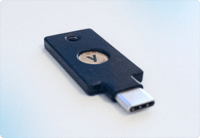 Physical security keys like YubiKey or Google Titan that use a unique pin to log in
- Built-in authenticators tied to the user’s biometrics like Touch ID, Face ID, and Windows Hello
- Digital passkeys that generate unique codes that replace your password
Why? Because these methods are cryptographically tied to the real Salesforce login page. A fake page can't relay them.
Who This Affects
These new MFA requirements only apply to privileged users, meaning anyone with the System Administrator profile, or any of these four permissions, whether granted through a profile, a permission set, or a permission set group:
- Modify All Data
- View All Data
- Customize Application
- Author Apex
If someone has even one of these, they’ll need to register a phishing-resistant method before enforcement reaches your org. Everyone else, including program staff, volunteers, and other limited-access users, can keep logging in exactly as they do today.
Steps for Updating Your Admins
Step 1: Identify Impacted Users
What trips orgs up is that privileged access has a way of hiding in places nobody remembers.
Manually auditing every profile and permission set across a live org is the kind of task that's easy to get wrong, especially in NPSP environments where access has accumulated over many years.
We built a free, self-install Salesforce app called Find Affected Admins that scans every active user in your org and returns a clean list of who's in scope and where their access comes from, including integration users and anyone holding the MFA exemption permission.
It runs entirely inside your org against your own metadata, so no data leaves Salesforce. You can install it for production or developer orgs, install it in a sandbox first, or ask us to run it for you.
Step 2: Turn On MFA Verification Methods
Before anyone can register a verification method, your org has to offer it. This takes about five minutes to set up.
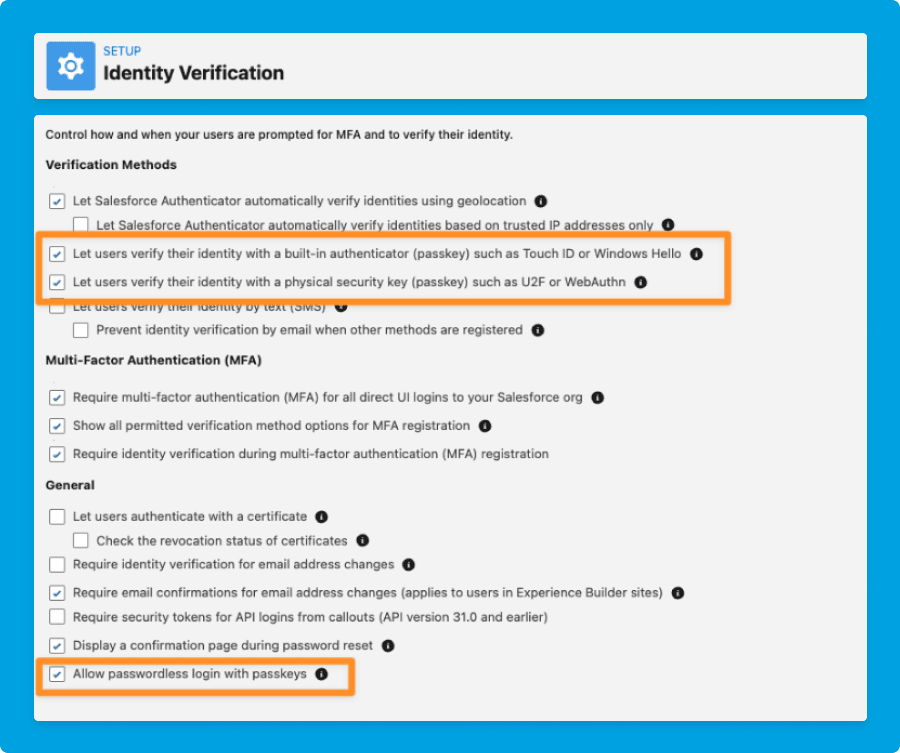
- Within your Salesforce instance, navigate to Setup and search for Identity Verification.
- Make sure the options allowing users to verify their identity with a built-in authenticator, physical security key, and/or passwordless login with passkeys are checked.
- Scroll to the bottom and save.
Which security key is right for you?
While any one of the security keys below satisfies the anti-phishing requirement, Salesforce recommends registering at least two so a lost or dead device never turns into a lockout.
|
Method |
Best for |
How it Works |
|
Physical Security Key |
Shared computers |
These devices are plugged into a USB port and are tapped to confirm login. Budget about $25 to $50 each. |
|
Built-in Authenticator |
One main device |
These authenticators are probably already built into your laptop or phone. They are the fastest to set up, but can be the trickiest if you work across several machines. |
|
Digital Passkey |
Multiple devices |
Passkeys are created in your browser profile or a password manager such as Bitwarden, 1Password, or Dashlane, then synced across the devices you own. They can be very convenient, but some do have a cost associated. |
A note on synced digital passkeys
Passkeys synced through a password manager work today and meet the requirement, but Salesforce is leaning towards device-bound credentials like security keys and authenticators.
We recommend registering a built-in authenticator or a physical security key as your primary method, and treating a synced passkey as a convenient backup rather than your only option.
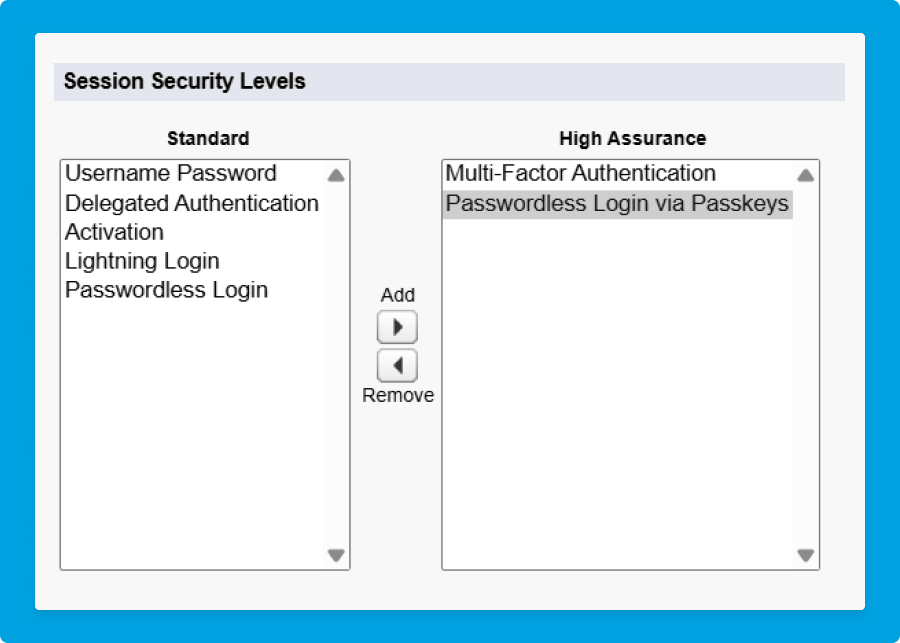
Step 3: Set Up Secondary Verification in Session Settings
So that you can still generate temporary verification codes and rescue locked-out users, set passkeys as a high-assurance session level.
- In Salesforce, navigate to Setup and open Session Settings.
- Scroll to Session Security Levels.
- Move Passwordless Login via Passkeys into the High Assurance column.
- Save your changes.
Step 4: Register Your New Verification Methods
Each admin and privileged user will need to do this in their own account. Thankfully, registering the new security key only takes about two minutes to complete.
- Log into Salesforce, click your profile icon in the top right, and choose Settings.
- In the left sidebar, open Advanced User Details.
- To use a passkey or built-in authenticator, click Add on the Built-In Authenticators related list. To use a physical key, find Security Key and click Register.
- Enter the verification code from your current MFA method, or the one-time code Salesforce emails to you, confirming your identity.
- Follow your device's prompt. This could mean touching a physical key, scanning your face, or picking the passkey.
- Make sure you name the key clearly so you know exactly what it is (ex. Jordan, YubiKey, Production).
- Log out and back in to confirm the new method is working correctly.
Are You an Integration & API User?
The old exemption that let API-only users skip MFA is also going away with this update.
Where you can, move third-party tools onto a dedicated Integration User license. Most Enterprise Edition orgs, including the NPSP setups most nonprofits run, get five of these free, and you can request more.
Form builders like FormAssembly and JotForm and donation tools like GiveLively generally support this license type.
A few platforms, such as Classy and GoFundMe Pro, still need a full System Administrator login at some point during setup. Those are the cases where you may need to file a support case with Salesforce to keep automation running.
If you are not sure which of your integrations are affected, let us know and we can help you look into it.
What Happens if You Do Nothing
This is not a Health Check warning or a recommendation you can dismiss. It’s a locked setting.
When enforcement reaches your instance, your privileged users will log in as usual and be asked to provide a phishing-resistant method on that first login. If they skip it or unable to do so, they’ll be locked out on the next attempt.
It is far better to be ready now, and to have your admins ready to help colleagues, than to discover it on a Tuesday morning when someone can’t get into the donor database.
Want us to handle it?
This kind of Salesforce administration work, tracking down permission sprawl, tightening security settings, keeping integrations running smoothly, is core to what the CauseMic team does every day for our nonprofit clients.
If you're already a CauseMic client on Salesforce, reach out to your project manager and we'll walk your org through this together, or handle it from start to finish.
If you're not yet a client but you're running NPSP and want a hand, we're also happy to help. Talk to the CauseMic team.
Official Salesforce Resources
- Prepare for Phishing-Resistant MFA Enforcement for Privileged Users including Admins, the canonical guide, including SSO and identity provider signal (AMR and ACR) requirements
- Multi-Factor Authentication for Salesforce Orgs
- Enable Built-In Authenticators for Identity Verification
- Resolve MFA Access Issues for Your Users, for lockout recovery
If you use SSO through Okta, Azure AD, or another provider, there are extra steps to make sure your identity provider passes the right phishing-resistant signal to Salesforce. If you’re not sure, ask us and we will confirm your configuration.